How to install
Two minutes, four steps. If the addon does not show up in game, the last section covers every reason we have actually seen.
One click: the GearInsight updater
A small Windows app that finds your World of Warcraft folder, installs GearInsight and keeps it up to date in the background. New releases reach your PC within minutes, and it checks again every time you launch the game. No zip, no folders.
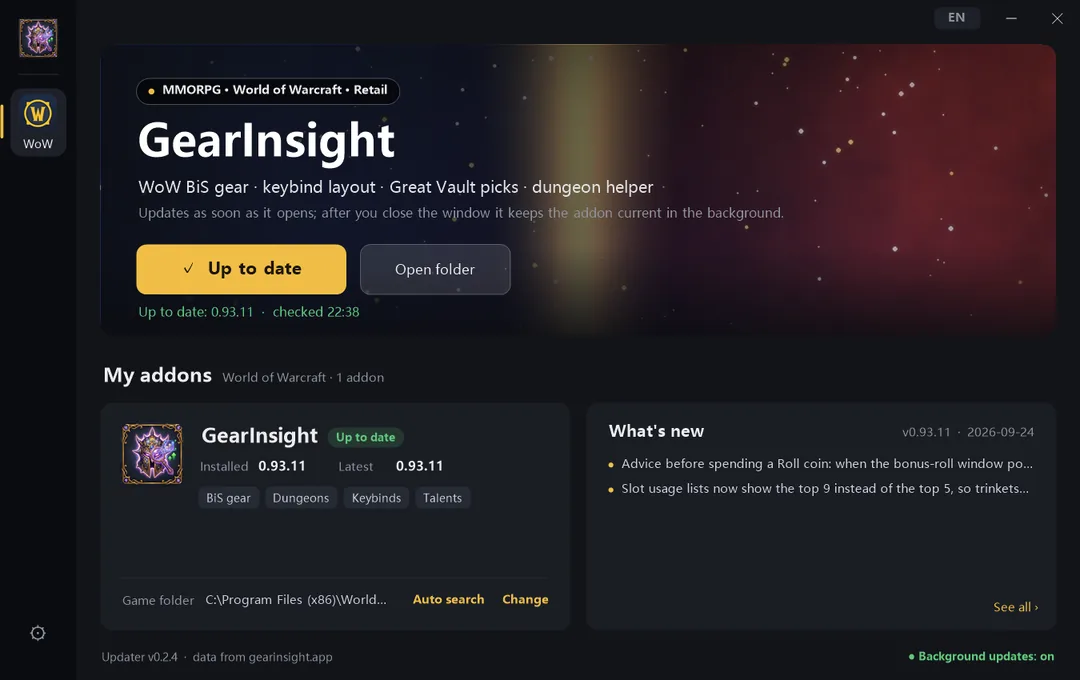
- Download and double-click GearInsightUpdater.exe. Nothing to install, no admin rights needed.
- If downloading or running the updater is blocked, use the ZIP below. An unsigned app may trigger a warning; a download warning and a Windows launch warning are different. Do not disable your security software.
- Select the game and enable its addon in the updater. Set its game folder once; new versions are then checked and installed automatically.
- Close the window — it stays in the tray (bottom right) and updates on its own. If the game is running during an update, type /reload.
Only touches the GearInsight* folders; the previous version is backed up to Interface\GearInsightBackup. The app follows your Windows language (English or Chinese) and can be switched with the button at the top right. Windows only — on macOS use the manual steps below.
Or install it manually:
1
Download the zip
Either link works — the direct one does not need a CurseForge account.
2
Find your AddOns folder
Windows — if you installed the game somewhere else, the part before World of Warcraft changes, the rest does not:
C:\Program Files (x86)\World of Warcraft\_cn_beta_\Interface\AddOns
macOS:
/Applications/World of Warcraft/_cn_beta_/Interface/AddOns
In Battle.net, select the game you actually play and choose Show in Explorer. Open that client's Interface/AddOns folder.
CN Beta: _cn_beta_\Interface\AddOns
Global Beta: _classic_beta_\Interface\AddOns
3
Extract every addon folder from the ZIP directly into AddOns. Do not leave them inside an extra ZIP-named folder.
AddOns/GearInsight_Forever/GearInsight_Forever.toc
4
Restart the game and check
If the game was running, fully exit and relaunch (a /reload is not enough for a newly added addon). Then type /gi in chat — the panel should open.
Not showing up?
Check the selected game, the AddOns folder and the addon checkbox on the character screen. Fully exit and restart after adding folders. Settings in WTF are preserved when updating.
Use the downloads for the game selected above. CurseForge may show a release later while it is being reviewed. In addon managers, select the CurseForge source.